Add Products And Groups
PurchaseStacks offer product groups and packages to offer flexibility to organize and display products for your customers. With the dashboard, you can configure what level of access each product should unlock. It allows you to configure which product is on display without changing your code.
There are 3 levels of product configuration.
- Groups
- Packages
- Products
Groups
App Store Connect provides the option to add products and if the products are of subscription type, you need to put them under a group. On Play Console, you do not need to configure them under any group. Our group's concept is the same as App Store Connect's product group and only available for subscription type products. For more information, check out the Apple blog on Subscription Groups.
A group represents a level of access, features, or content that a user purchases.
Most apps only have one group, unlocking all premium features. However, if you had two tiers of content such as Gold and Platinum, you would have 2 groups.
note
The structure of your groups and products inside them should match the structure at App Store Connect
Packages
A group can have many packages. Each package can have one active product under one store. But how does this help?
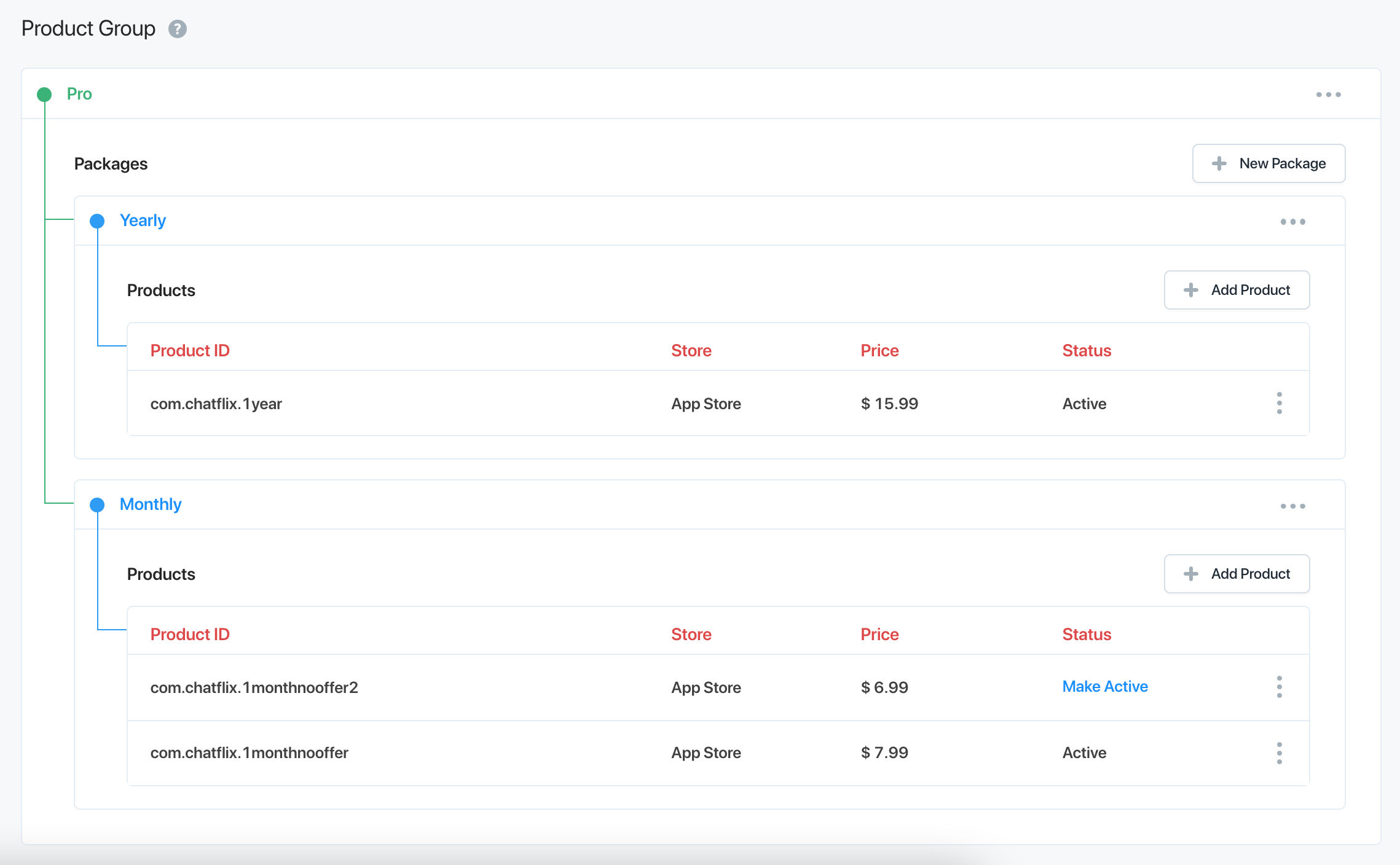
Let's consider a scenario. For a monthly reader app, you are offering a yearly subscription product and a monthly subscription product. Now you want to change the price of the monthly subscription product. Instead of changing the price, you can add a new monthly subscription product and display it. This is possible with PurchaseStacks.
You create two packages, Yearly and Monthly, under Monthly package add both monthly products and activate the one that you want to display to your customers and we will show that product.
Products
Products are the individual SKUs that users purchase. The stores (Apple, Google) process these SKUs and charge the user.
note
You must add all In-App Subscriptions configured in App Store Connect or Play Console to PurchaseStacks. Unfortunately, Apple/Google doesn't have an API to receive the configured products list. That is why you should add all products manually
You should add consumable/one time purchase products in Products section inside App section. And organize subscription type products inside Product Groups section
note
PurchaseStacks currently only supports consumable and auto-renewable subscription type products for iOS and one-time purchase and subscription products for Android
How purchasing a product activates a group
When a user purchases a product, the package it was in, becomes active. If a package is active, the group is was in, becomes active.
We can accurately track the original user who purchased the product. If the user logs out of your application and logs back in with a different account, we will be able to track which user purchased the product. Even if the user changes Apple/Google ID and logs back in with a different ID, we can track it and deactivate the group is needed.